How To Turn On Samsung Oven Easy Step By Step Guide
Turning on your Samsung oven is easy once you know the right steps. This guide walks you through every Samsung oven model, from digital displays to traditional knobs. You will learn how to set temperature, choose cooking modes, and fix common power issues quickly.
Your Samsung oven is ready to cook amazing meals. But before you can bake, roast, or broil anything, you need to know how to turn it on. It sounds simple, right? Yet many people stand in front of their oven feeling confused by buttons, knobs, and digital screens.
This guide makes it super easy. We will show you exactly how to power on your Samsung oven step by step. Whether you own a sleek Samsung smart oven or a classic model with a traditional knob, we have you covered. By the end, you will feel confident and ready to cook.
We also share tips on setting the right oven temperature settings, choosing the best cooking mode, and fixing small problems. No jargon. No confusion. Just clear, friendly instructions that work. Let us get your oven up and running.
Key Takeaways
- Know Your Controls: Samsung ovens have different control types, including digital touchpads, rotary knobs, and smart Wi-Fi panels.
- Simple Power Steps: Pressing the power button or turning the mode knob is usually all you need to start.
- Set Temperature First: Always preheat your oven before placing food inside for even cooking results.
- Troubleshooting Helps: Common issues like a blank display or unresponsive buttons often have easy fixes at home.
- Safety Matters: Use the child lock and keep vents clear for safe and efficient operation every time.
📑 Table of Contents
- Understanding Your Samsung Oven Controls
- Step-By-Step Guide To Turning On Your Samsung Oven
- Setting Temperature And Cooking Modes Explained
- Common Issues When Your Samsung Oven Won’t Turn On
- Tips For Using Your Samsung Oven Like A Pro
- Maintaining Your Samsung Oven For Best Performance
- Safety Tips For Operating Your Samsung Oven
- When To Call A Professional For Samsung Oven Help
- Final Thoughts
Understanding Your Samsung Oven Controls
Before you press any button, it helps to know what you are looking at. Samsung ovens come in several styles, and each one has a slightly different way of turning on. Once you understand the basics, everything else falls into place.
Types Of Samsung Oven Control Panels
Samsung makes a few different control styles. Here is what you might find on your model:
- Digital Touchscreen: These modern Samsung digital displays use a bright screen with touch buttons. You tap icons to power on and select settings.
- Rotary Knob Controls: Older and classic models use a physical knob. You turn it to select the mode and push it to start.
- Smart Wi-Fi Panel: Premium models let you control the oven from your phone. The panel on the oven still works too.
- Dial And Button Combo: Some models mix a round dial with a few buttons for power, temperature, and timer.
Take a moment to look at your oven’s front panel. Find the power button, the mode selector, and the temperature controls. This small step saves a lot of time later.
Where Is The Power Button On A Samsung Oven?
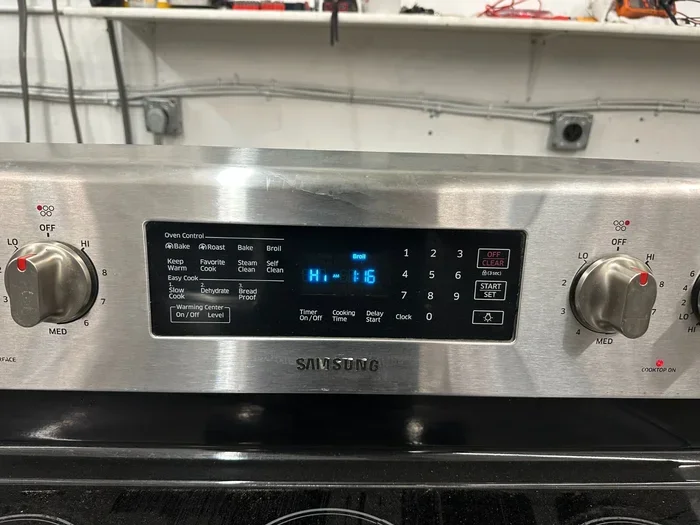
On most Samsung models, the power button sits at the top or bottom of the control panel. It may say “Power,” “On/Off,” or show a circle with a line. On touchscreen models, you simply tap the screen once to wake it up. On knob models, you press the knob in or twist it to the “On” position.
If your oven has a Samsung oven timer display, it will light up when the oven powers on. This is a good sign that your oven is receiving electricity and is ready to cook.
Step-By-Step Guide To Turning On Your Samsung Oven
Now let us get into the actual steps. Follow along carefully, and you will have your oven running in under a minute.
Step 1: Make Sure The Oven Is Plugged In
This sounds obvious, but it is the most common reason an oven will not turn on. Check the power cord at the back of the oven. Make sure it is firmly plugged into a working wall outlet. If you use a power strip, confirm the strip is turned on and not tripped.
Also, check your home’s circuit breaker. Sometimes a tripped switch cuts power to the kitchen. Reset it if needed, and try again.
Step 2: Press The Power Button Or Turn The Mode Knob
For digital models, press the power button once. The screen will light up and show the clock or a standby mode. For knob models, turn the mode dial to any cooking setting like “Bake” or “Broil.” The oven will power on automatically.
On Samsung smart oven models with Wi-Fi, you can also use the Samsung SmartThings app on your phone. Open the app, select your oven, and tap the power icon. This is a handy option if you want to preheat the oven before you even walk into the kitchen.
Step 3: Select Your Cooking Mode
Once the oven is on, choose how you want to cook. Samsung ovens typically offer these modes:
- Bake: Uses the bottom heating element for even, steady heat. Perfect for cakes, cookies, and casseroles.
- Broil: Uses the top heating element for high, direct heat. Great for searing meats and melting cheese.
- Convection: Uses a fan to circulate hot air. This mode cooks food faster and more evenly.
- Steam Cook: Available on select models. Adds moisture for healthier cooking.
- Self-Clean: Heats the oven to a very high temperature to burn off residue.
Tap or turn to your desired mode. The oven will start responding to your next input, which is usually setting the temperature.
Step 4: Set The Temperature
After selecting your mode, set the temperature. Use the “+” and “-” buttons on digital models or the temperature dial on knob models. Most recipes call for specific temperatures, so follow your recipe carefully.
For example, if you want to roast pumpkin seeds in the oven, you would set the temperature to around 300°F and select “Bake” mode. The same principle applies to any recipe you follow.
Step 5: Press Start And Wait For Preheat
Once you set the temperature, press the “Start” button. Your oven will begin heating up. Most Samsung ovens show a preheat indicator on the display. Wait until this light turns off or the display says “Preheating Complete” before placing your food inside.
Preheating matters a lot. It ensures your food cooks evenly from the very first moment. Skipping this step can lead to undercooked or unevenly baked dishes.
Setting Temperature And Cooking Modes Explained
Understanding how to set the right temperature and mode makes a big difference in your cooking results. Here is a closer look at each option.
Bake Mode: Your Go-To For Most Recipes
Bake mode is the most commonly used setting. It heats the bottom element and maintains a steady temperature throughout the oven cavity. Use this mode for bread, pies, roasted vegetables, and most baked goods.
The typical baking temperature range is 325°F to 450°F. Always let the oven preheat fully before putting your food in. This gives you the best results every time.
Convection Mode: Faster And More Even Cooking
Convection mode adds a fan that moves hot air around the oven. This reduces hot spots and cooks food about 25% faster than regular bake mode. If you are roasting a chicken or baking multiple trays of cookies, convection mode is your friend.
When using convection, reduce the recipe temperature by about 25°F. The fan makes the heat more intense, so a slightly lower temperature prevents burning.
Broil Mode: High Heat From Above
Broil mode focuses heat on the top of the food. It is perfect for finishing dishes, browning cheese, or cooking thin cuts of meat quickly. Keep a close eye on food in broil mode because it can burn fast.
Place your food on the top oven rack, close to the heating element, for the best broiling results.
Steam Cook Mode: Healthy And Moist
Some newer Samsung ovens include a steam cook feature. This mode adds steam to the cooking environment, keeping food moist without added fat. It works great for vegetables, fish, and reheating leftovers without drying them out.
If your model supports steam cook, you will find a dedicated button or icon on the control panel. Simply press it, set the temperature, and let the oven do the work.
Common Issues When Your Samsung Oven Won’t Turn On
Sometimes, even when you follow the steps, the oven does not respond. Do not worry. Most of these problems have simple solutions.
The Display Is Blank Or Unresponsive
A blank display usually means the oven has no power. Start by checking the plug and the outlet. You can also try resetting the oven by turning off the circuit breaker for 30 seconds, then turning it back on.
On touchscreen models, a quick reset often fixes a frozen screen. Press and hold the power button for 10 seconds, then release. The screen should restart and return to standby mode.
The Oven Turns On But Does Not Heat
If the display works but the oven stays cold, the heating element may be faulty. Check if you can hear a faint humming sound or see a red glow inside when you set a high temperature. If you see neither, the element might need replacement.
Before calling a technician, try resetting the oven by turning it off, unplugging it for a minute, and plugging it back in. This simple step fixes many minor electrical glitches.
Error Codes On The Display
Samsung ovens sometimes show error codes like “SE,” “CE,” or “E1.” These codes point to specific problems. A quick online search with your model number will tell you what each code means and how to fix it.
Common causes include a door not closing fully, a temperature sensor issue, or a ventilation problem. Check the door seal and make sure nothing is blocking the vents at the back of the oven.
Tips For Using Your Samsung Oven Like A Pro
Once you know how to turn on and set up your oven, a few pro tips will take your cooking to the next level.
Always Preheat Before Cooking
Preheating gives your oven time to reach the target temperature before food goes in. This is especially important for baking, where consistent heat makes or breaks the final result. Most recipes will tell you to preheat, and you should always follow that advice.
Use The Rack Position That Fits Your Recipe
Where you place the oven rack changes how your food cooks. For baking, the middle rack gives the most even heat. For broiling, the top rack works best. For roasting large items like a whole chicken, the lower rack allows heat to circulate underneath.
If you are planning to cook chicken kebabs in the oven, the middle rack at 375°F for about 20 to 25 minutes works perfectly.
Use The Timer Feature
The Samsung oven timer is a helpful tool. Set it when you put food in the oven so you do not forget about it. You can also use the timer independently of the oven heat for things like soaking beans or resting bread.
Clean Regularly For Better Performance
A clean oven heats more efficiently and cooks food more evenly. Wipe up spills right after cooking when the oven is still warm. Use the self-clean mode sparingly, as it uses a lot of energy and can produce smoke.
Maintaining Your Samsung Oven For Best Performance
Taking care of your oven helps it last longer and work better. Here are a few simple maintenance habits.
- Wipe The Interior Monthly: Use a damp cloth with mild soap to clean the inside walls and floor of the oven.
- Check The Door Seal: A worn seal lets heat escape, which wastes energy and affects cooking. Replace it if it looks damaged.
- Clean The Oven Rack: Remove the racks and soak them in warm soapy water. Scrub off any baked-on residue gently.
- Inspect The Heating Elements: Look for cracks, warping, or discoloration on the bake and broil elements. Replace them if needed.
- Keep Vents Clear: Make sure nothing is blocking the vents at the back or top of the oven. Good airflow is essential for safe operation.
These small habits add up. A well-maintained Samsung oven will serve you reliably for years and deliver consistent cooking results every time.
Safety Tips For Operating Your Samsung Oven
Safety should always come first when using any oven. Here are a few important reminders.
- Use Oven Mitts: Always wear heat-resistant gloves when handling hot pans or trays inside the oven.
- Keep Children Away: Use the child lock feature on digital models to prevent little ones from accidentally turning on the oven.
- Never Leave The Oven Unattended: Especially when broiling or using high temperatures, stay nearby and watch your food.
- Keep Flammable Items Away: Paper towels, cloths, and plastic items should never be placed near or inside a hot oven.
- Ventilate Your Kitchen: Use the range hood or open a window to keep steam and cooking odors from building up.
Following these safety tips protects your family and keeps your oven running smoothly. A little care goes a long way.
When To Call A Professional For Samsung Oven Help
Most oven issues are simple to fix. But some problems need a trained technician. Call a professional if you notice any of the following:
- The oven still does not turn on after a full reset and checking the power supply.
- You see sparks, smoke, or a burning smell coming from the oven.
- The oven heating element visibly damaged or not glowing when set to high heat.
- Error codes keep returning even after you try the recommended fixes.
- The door does not close properly or the seal is severely worn.
A qualified technician can diagnose and repair serious issues safely. Do not attempt to open the oven or fix electrical parts yourself, as this can be dangerous.
Final Thoughts
Learning how to turn on Samsung oven is a simple skill that opens the door to countless delicious meals. Whether you are baking a cake, roasting vegetables, or making a quick batch of frozen fries in the oven, the process starts with one simple step: powering on your oven correctly.
Remember to check the power connection, press the right button or turn the knob, select your cooking mode, set the temperature, and wait for preheat. With a little practice, these steps become second nature. You will wonder why you ever felt unsure.
Take care of your oven, follow the safety tips, and enjoy the process of creating food your whole family will love. Your Samsung oven is a powerful kitchen tool, and now you know exactly how to use it. Happy cooking!
For more oven cooking ideas, check out how to cook oysters in the oven for a delicious and impressive seafood dish.
Frequently Asked Questions
How do I turn on my Samsung oven for the first time?
Plug the oven into a working outlet, then press the power button on the control panel or turn the mode knob to any setting. The display will light up, and you can select your cooking mode and temperature. Wait for preheat before placing food inside.
Read your oven’s manual for model-specific instructions. Most Samsung ovens follow the same basic steps, so you will feel comfortable quickly.
Why is my Samsung oven not turning on?
The most common reason is a power issue. Check that the plug is secure and the outlet is working. Also check your home’s circuit breaker. If the display is blank, try resetting the oven by turning off the breaker for 30 seconds and turning it back on.
If the oven still does not respond after a reset, there may be a problem with the control board or internal wiring. In this case, contact a Samsung service technician.
Can I turn on a Samsung oven without using the power button?
Yes, on most knob-style Samsung ovens, you can simply turn the mode dial to Bake, Broil, or Convection. The oven will power on automatically when you select a cooking mode. Digital touchscreen models require you to tap the power icon first.
Some Samsung smart ovens can also be turned on through the Samsung SmartThings app on your phone, which is very convenient.
How long does it take for a Samsung oven to preheat?
Most Samsung ovens preheat to 350°F in about 10 to 15 minutes. Convection models may preheat faster because the fan circulates heat more efficiently. The display will show a preheat indicator that turns off when the target temperature is reached.
Always wait for the preheat signal before putting food in the oven for the best cooking results.
What should I do if my Samsung oven shows an error code?
First, write down the error code displayed on the screen. Then, search for that code along with your oven model number online. Common codes like “SE” or “E1” usually have simple fixes such as resetting the oven or checking the door latch.
If the error code returns after a reset, contact Samsung customer support or a qualified repair technician for help.
Is it safe to leave a Samsung oven on overnight?
No, it is not recommended to leave any oven running unattended for long periods, especially overnight. Samsung ovens are designed for daytime cooking sessions. If you need slow cooking overnight, consider using a slow cooker or a programmable oven with a built-in timer that automatically shuts off.
Always practice kitchen safety and never leave a hot oven without supervision.
=== CONCLUSION ===
Turning on your Samsung oven does not have to be complicated. With the right steps, you can power up your oven, set the perfect temperature, and start cooking in just a few minutes. From digital touchscreens to classic rotary knobs, every Samsung oven model follows a simple process that anyone can master.
Remember to check the power supply, select your cooking mode, set the temperature, and wait for preheat. Use the tips in this guide to get the best results every time you cook. Keep your oven clean, follow safety rules, and do not hesitate to call a professional when needed.
Now that you know exactly how to turn on your Samsung oven, it is time to put that knowledge to work. Pick a recipe, fire up your oven, and enjoy the satisfying experience of cooking a great meal at home.